
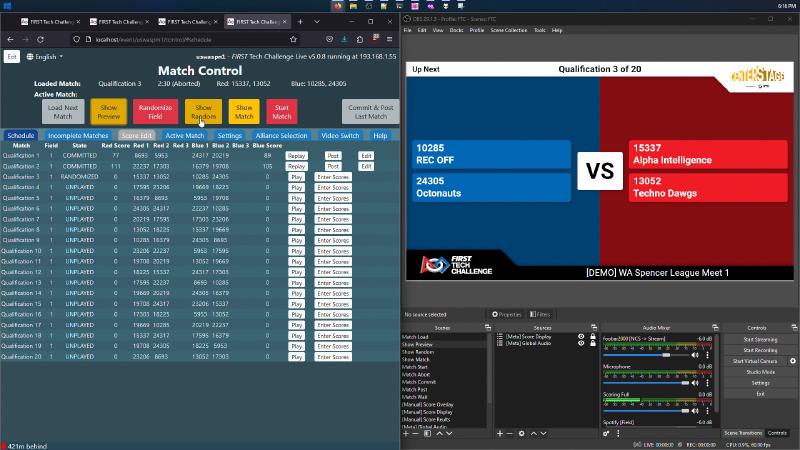
Of the many aspects in a robotics competition, video engineering is one that I’d never considered. Yet as I began volunteering for local FTC competitions, I realized a lot went into producing a good-quality stream, both for the teams and the audience.
The process#
A/V production for FTC competitions isn’t the most complicated, though it still involves a lot:
- displaying various forms of information from the FTC scorekeeper software like team rankings, match results, and real-time scores;
- switching between camera views for announcements, gameplay, and alliance selection;
- and managing multiple audio sources: in-person music, NCS stream music, announcer microphones, and scorekeeper timers.
On top of this, I made the process more complicated for myself by also adding on a custom scene-switching animation, which I based off of the season’s reveal trailer; additional gameplay camera angles; and custom layouts for intros and outros. For archival purposes, I also wanted to automatically save trimmed gameplay clips for each match.
Most of these features require several complex layouts in OBS Studio (the broadcasting software I used), and over the span of many hours, must be switched between constantly.
That’s a lot of work!
And as a result, many events resorted to a static camera and score layout for their entire runtime. But I wanted to challenge that.
Automating the process#
So, to reduce the workload and improve the experience for both on-site audiences and viewers watching the livestream, I developed a streaming automation script in Python.
It uses the FTC Scorekeeper’s WebSocket events API, which sends a message every time an event (show preview of upcoming match, start match, etc.) is triggered to know when to change something in OBS Studio.
Currently, I use two types of actions: scene switching and match clipping.
Scene switching#
When the Scorekeeper shows a match preview, a game state randomization, switches to match view, starts the match, or presents the final score, a scene switch can trigger.
In my setup, I use a full-screen view of the scoreboard during the pre-game segment, which transitions to a lower third overlay on top of a camera during actual gameplay. When a match ends and the scores are finalized, the plugin transitions from the overlay back to full-screen to play the results animation and reveal the score.
Match clipping#
When the Scorekeeper shows a match preview, the script takes a screenshot of the program in OBS Studio, showing the four competing teams.
Then, when the match begins, the script sets a 173-second timeout, including 15 seconds before the match begins, 2:38 of gameplay, and some time after the match ends. At the end of this timeout, the script requests OBS Studio to save its replay buffer (which retroactively records video) to disk, creating a recording of the full match.
And with these improvements, a task that previously required multiple volunteers can now be handled by a single operator. During normal gameplay, I can step away from the setup and have it run by itself!