
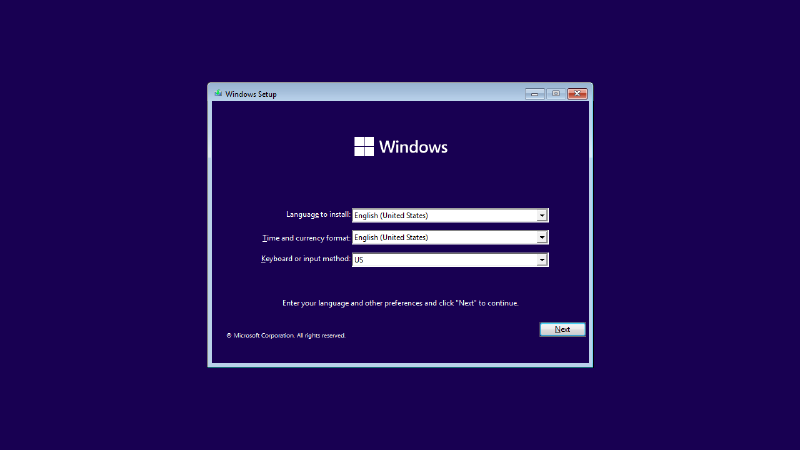
A fresh install of Windows isn’t really fresh. Windows 11’s defaults include Copilot integrations, Microsoft account sign-in prompts, bundled apps, OneDrive, and telemetry data that I prefer to disable. While these defaults might be useful for other people, for me, before I can actually use my computer, I have to run through a second setup process of removing apps I don’t need, changing settings, and just getting the system back to the way I like it.
Since I have several computers (and sometimes reinstall Windows), running through a massive checklist of configuration options in addition to reinstalling all my apps was a process that became overwhelming very quickly. I needed something that could run through the Windows installation process for me and make all of my tweaks.
Why not a customized image?#
Many corporations (and OEMs) create an image using Microsoft Sysprep with all their tweaks and apps installed so they can easily deploy a pre-configured Windows install to new computers. While that’s convenient for big organizations, as an individual, it’s rather annoying for me to reapply all my tweaks when a new Windows feature update releases.
Instead of maintaining a whole custom Windows image, I wanted something closer to a recipe: start with the normal Windows installer ISO, automatically answer the setup prompts, and apply my changes on top of it. That way, when Microsoft pushes a new ISO release, all I need to do is tweak a few lines in a configuration file rather than rebuilding and preparing an entire image from scratch.
Windows supports that through autounattend.xml, an answer file that automates the installer and launches post-install scripts. From there, I could use Local Group Policy and Registry tweaks to configure the system without maintaining a full system image.
Goals#
I want this configuration to automatically:
- answer Windows installer prompts,
- remove unnecessary built-in applications,
- apply common settings (privacy, usability, and other opinionated tweaks),
- and ask for my manual input only when needed (disk partitioning, computer name, and Wi-Fi).
This entire process consisted of testing out my settings on a fresh Windows 11 install inside of a virtual machine, updating my config files, and testing out the install on another VM. There was a lot of trial and error!
Group Policy#
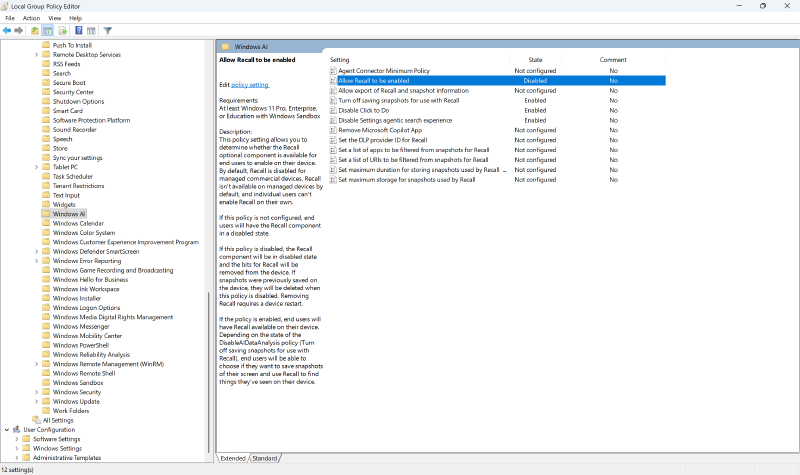
I started off with Group Policy, a feature that allows administrators to configure Windows settings. Companies can set Group Policy settings to be synced across their entire fleet of devices, but they can also be managed using the Local Group Policy Editor. Windows provides a built-in set of Group Policy Objects under the “Administrative Templates” category, allowing for various features and settings to be controlled. These settings each came with documentation and specific toggles, making them very straightforward to set up.
The challenge, however, was finding a way to import these Group Policies automatically. That’s where the LGPO
tool came in. It allows Group Policy settings to be exported into a .pol file, which can then later be restored. By enabling the UseConfigurationSet option in autounattend.xml, I was able to place the .pol file and the LGPO executable itself into the distribution share folder
($OEM$\$$\Setup\Scripts) and have the Windows installer copy them into the install (C:\Windows\Setup\Scripts).
Windows Registry#
While Group Policy settings covered the most important and commonly-used settings, there were more preferences that simply didn’t have a corresponding Group Policy Object. Instead, they were managed by keys inside of the Windows Registry.
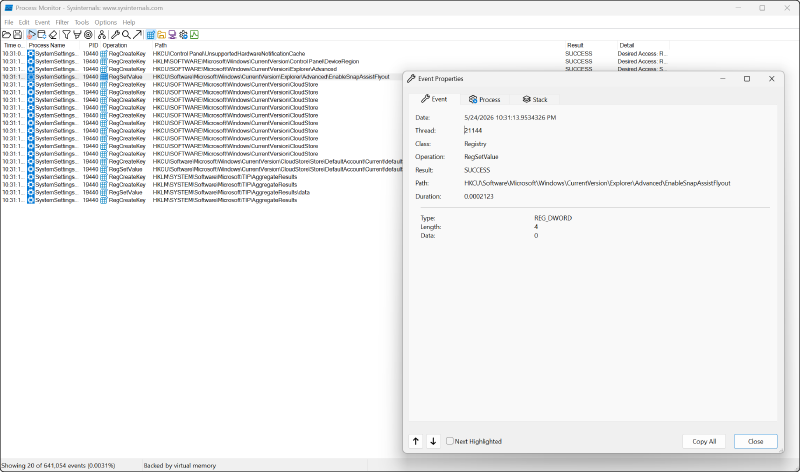
Some options, such as enabling UTC in Windows , are well-documented on the Internet. Others, however, such as whether the Snap Layouts menu appears when hovering over the maximize button, couldn’t be found anywhere.
For those options, I had to find the Registry key controlling them myself. Process Monitor from the Sysinternals suite allowed me to track Registry changes, filtered down to just the Settings apps. I then ran through all the options I would change in Settings, jotted down the Registry key path, and tried manually toggling the Registry key myself through the Registry Editor to change the setting.
From my findings, I compiled a handful of .reg files which could then be imported to Windows.
Building autounattend.xml#
The unattend generator tool
helped me quickly make an autounattend.xml with my installer answers, along with my Group Policy and Registry settings.